A cookie banner that is missing, unstyled, stuck in the wrong state or showing the wrong text is almost always a caching or optimisation problem, not a consent problem. Cookie banner caching WordPress issues have five usual causes: a delayed or combined script, stripped CSS, a page cached with one visitor’s state, a cached region answer, and a stale CDN copy. This guide is for site owners who use WP Rocket, LiteSpeed Cache or Cloudflare, and shows how to find which cause you have and fix it.
In this article
Cookie banner caching WordPress problems: the five usual causes
Caching and optimisation plugins make a site faster by changing what is sent to the visitor: they store finished pages, merge and shrink files, and hold scripts back until the visitor interacts. A cookie banner needs to run early, run for every visitor, and run the same way each time. Those goals collide in predictable places.
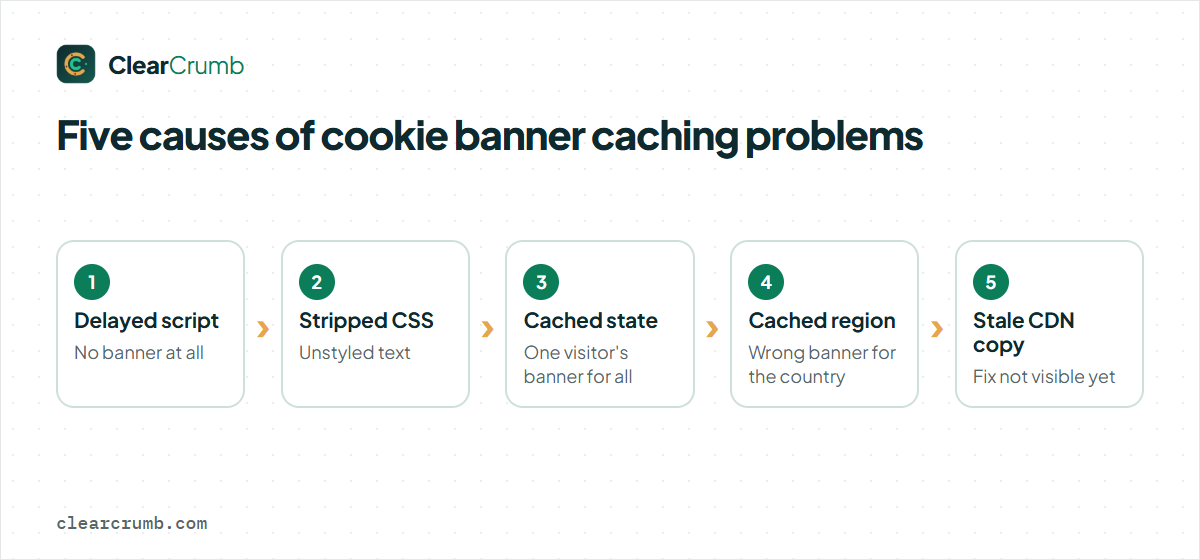
| What you see | Likely cause | Where to look |
|---|---|---|
| No banner at all, no console error | The banner script is delayed until the first click or scroll, or deferred after it should run. | The “Delay JavaScript” or “Load JS Deferred” feature of your optimiser |
| Banner appears as unstyled text | Its CSS was combined, removed as unused or loaded late. | CSS combine and unused-CSS features |
| Banner shows for one visitor and not another, or after a choice it reappears | A cached page holds one visitor’s banner state and serves it to everyone. | Page cache and how your banner plugin decides to print the banner |
| EU banner for US visitors, or the reverse | The region answer was cached, or the country header is missing. | CDN caching rules and country headers |
| You fixed it, and visitors still see the old behaviour | A CDN or browser still holds the old page or script. | Purge the page cache, then the CDN, then test in a private window |
Work through the five cookie banner caching causes in this order. The first two are about files; the third and fourth are about what gets stored; the last is about timing. Most sites have exactly one cookie banner caching problem, and finding which one takes about ten minutes once you know the method below.
Cookie banner caching: why a cached page can show the wrong banner
Cookie banner caching comes down to this: a full-page cache stores the HTML that WordPress produced for the first visitor and hands the same file to everyone after. That is fine for a blog post and risky for anything that depends on the person. If a banner plugin decides on the server whether to print its banner, for example by reading a consent cookie while the page is built, then the first visitor’s state is baked into the cached file and served to everybody.
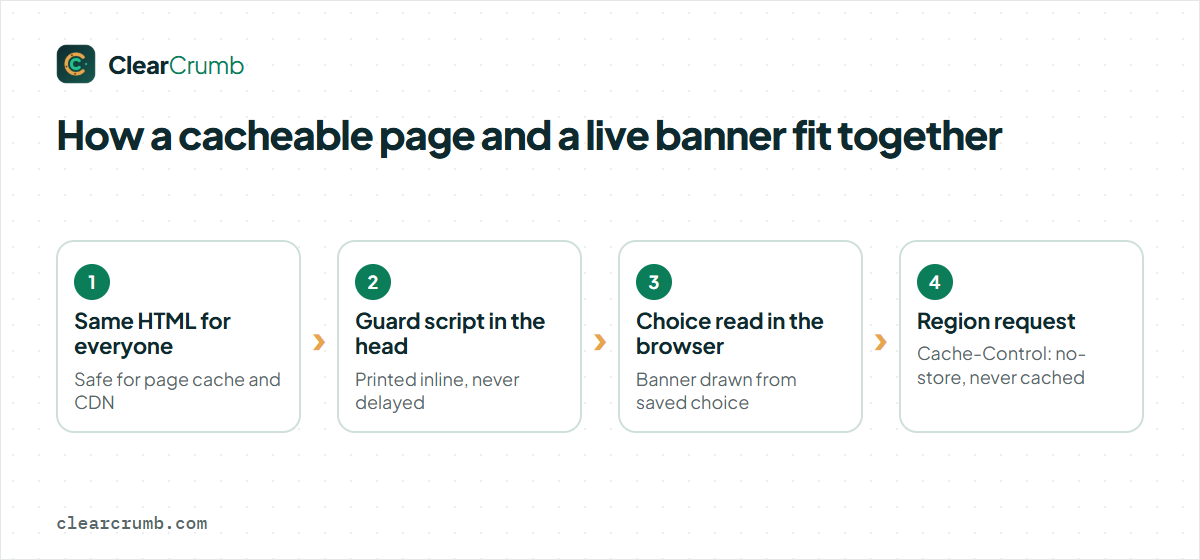
The safer design for cookie banner caching is to make the HTML identical for every visitor and let the browser decide. That is how ClearCrumb works: every visitor receives the same page, and the banner is drawn in the browser from the choice saved there. The visitor’s region comes from a separate small request to /wp-json/clearcrumb/v1/region, which is sent with the header Cache-Control: no-store, private, max-age=0 so no cache is meant to keep it. A guard script printed inline in the page head also holds back blocked scripts before anything else runs, which means it cannot be combined, deferred or delayed away.
The same cookie banner caching reasoning applies whichever plugin you use. If a banner plugin documents that it needs a cache exclusion or a “vary by cookie” rule, follow that. If it says nothing, test it: open a page in a private window, accept, then open the same page in a second private window and check that it asks again.
How to find the cookie banner caching cause in ten minutes
Do not change five cookie banner caching settings at once. One change, one test, in a private window each time so your own saved choice does not hide the problem.
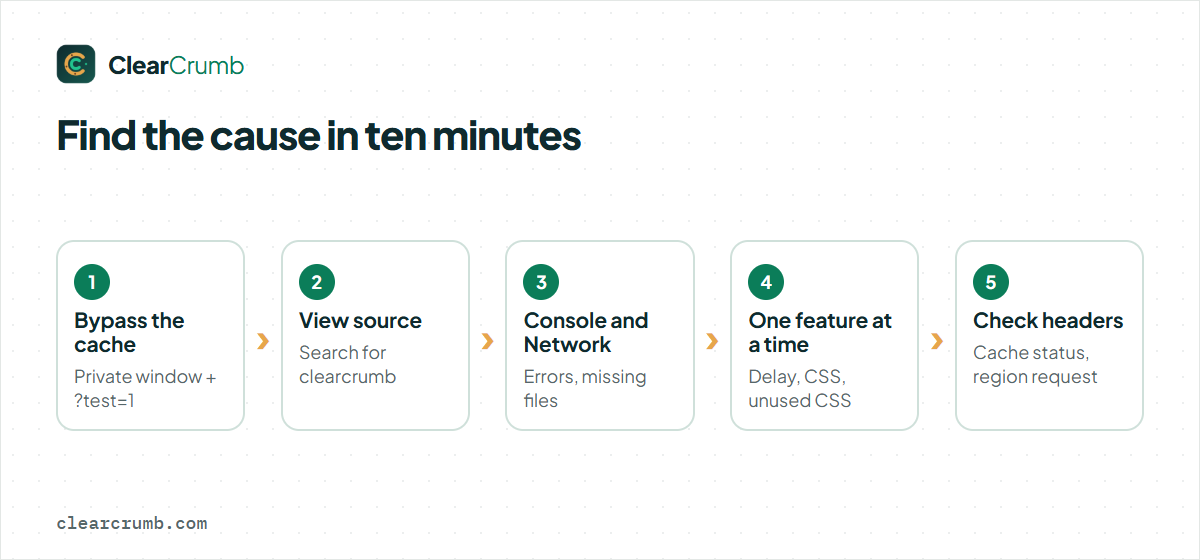
- Bypass the page cache. Add a harmless query string such as
?test=1to the address, or log in and use the cache plugin’s purge button, then reload in a private window. If the banner is right now, caching is involved. - Look at the page source. Use View Source and search for
clearcrumb. If the guard script is in the head, the plugin ran. If it is missing, the page may be an old cached copy or the plugin is not active on that page type. - Open the browser’s console and Network tab. A script error, or a banner file that never loads, points to an optimiser rather than to consent logic.
- Switch off one optimiser feature at a time. Turn off delay or defer, purge, test. Then CSS combine, purge, test. Then unused-CSS generation. The feature that brings the banner back is the cause.
- Check the headers. In the Network tab, click the page request. With LiteSpeed look for
x-litespeed-cache; with Cloudflare look forcf-cache-status. Then click theregionrequest: it should not sayHIT.
Once you know the cookie banner caching cause, jump to the matching section below. If the banner works with every optimisation off, the optimiser is the cause, and the fix is an exclusion rather than turning optimisation off for good.
WP Rocket: Delay JavaScript execution
WP Rocket’s Delay JavaScript execution option, on the File Optimization tab, holds back scripts, including inline ones, until the visitor moves the mouse, touches the screen, scrolls or presses a key. It applies to cached pages and turns off the Combine JavaScript files option so scripts keep their order. WP Rocket’s own documentation describes it as working like lazy loading, but for JavaScript.
That is exactly what a cookie banner should not wait for, and it is a classic cookie banner caching problem. If the banner only appears after the first scroll, this is why. There are three ways to deal with it:
- Use the exclusion list. Add the banner’s script to Excluded JavaScript Files as a file URL or a keyword, then clear the cache.
- Use the attribute. A script tag with
nowprocketis skipped. ClearCrumb adds this to the tags it holds and registers its own files with WP Rocket’s exclusion lists automatically. - Use Safe Mode only as a test. WP Rocket’s Safe Mode for delayed JavaScript excludes almost all scripts under
/wp-content/and/wp-includes/. Its documentation presents it as a temporary measure while you identify the right files, not as a permanent setting.
Read WP Rocket’s own page on delaying JavaScript execution for the current option names, since plugin menus change between versions.
LiteSpeed Cache: deferral and unused CSS
LiteSpeed Cache keeps the relevant switches under Page Optimization. Three areas matter for cookie banner caching.
| Setting | Where | What it can do to a banner |
|---|---|---|
| Load JS Deferred | JS Settings tab | Holds JavaScript until the HTML has loaded. The Delayed option waits for user activity, so the banner can appear late. |
| JS Excludes | Tuning tab | The place to list files that must stay out of minify, combine and push. |
| CSS Combine and Generate UCSS | CSS Settings tab | Combines CSS and builds a per-page file with only the CSS the page appears to need. Styles for an element added after load can be missed. |
ClearCrumb registers its files with LiteSpeed’s JavaScript exclusion and deferral filters, and adds data-no-optimize to its tags, so the script side is normally handled for you. The CSS side is worth a deliberate test: switch off Generate UCSS for a minute, purge, and see whether the banner is styled. If it is, regenerate the unused-CSS file after you have changed the banner, and test again before you leave it on.
One more LiteSpeed point: it reports whether a page came from its cache in the x-litespeed-cache header. That is the quickest way to know whether you are looking at a stored copy.
Cloudflare and cookie banner caching: Rocket Loader, rules and country
For cookie banner caching, Cloudflare adds three things worth checking. The first is Rocket Loader, which defers JavaScript. Cloudflare’s documentation says to add data-cfasync="false" to a script tag to make Rocket Loader ignore it, placed before the src attribute, and notes that scripts which depend on others need the attribute too. ClearCrumb sets that attribute on its tags; see Cloudflare’s page on making Rocket Loader ignore scripts if you add your own.
The second is caching rules. If you run a rule that caches everything, make sure it does not capture the region request. A correct response shows cf-cache-status: DYNAMIC or BYPASS, never HIT. On clearcrumb.com, that request returns DYNAMIC.
The third is country detection. Cloudflare passes the visitor’s country in a header by default, and ClearCrumb reads it. On other hosts without such a header, the visitor’s time zone is used as a fallback, which is why US visitors may occasionally see the EU banner. The geo rules documentation explains the order of detection.
Fix cookie banner caching WordPress problems in this order
When cookie banner caching goes wrong, resist the urge to switch off all optimisation. A slow site is also a problem. Instead, apply the smallest fix first and stop when the banner is right.
- Exclude the banner files from delay, defer and combine in your optimiser. For ClearCrumb this is done for WP Rocket, LiteSpeed Cache, Autoptimize and SiteGround Optimizer; the cache plugins page lists what is excluded.
- Re-generate unused-CSS output if you use it, after any banner change.
- Purge the page cache after you add or remove services, so cached pages get the new blocking.
- Purge the CDN and test in a private window.
- Run the Leak Test. A banner that looks right can still let services through. The cookie banner leak test guide shows how to read the result.
Run the same cookie banner caching sequence after every optimiser update, theme change and new plugin. Settings that were fine last month can be reset by an update, and the first sign is often a banner that quietly stopped working.
It also helps to keep a short note of what you changed for cookie banner caching and why. Optimisation plugins tend to be configured by several people over several years, and an exclusion that nobody documented is the first thing to be “tidied away” in a later clean-up. Write the setting name, the file or keyword you excluded and the date next to your site notes, so the next person who touches the settings knows that the banner depends on it.
Frequently asked questions
Why does my cookie banner only appear after I scroll?
An option that delays JavaScript until the first interaction is holding the banner script. In WP Rocket this is Delay JavaScript execution; in LiteSpeed Cache it is the Delayed option of Load JS Deferred. Exclude the banner script and clear the cache.
Does cookie banner caching mean I should exclude the whole page from caching?
No. A banner that is drawn in the browser works with a fully cached page. Excluding pages costs speed and is only needed for banner plugins that decide on the server whether to print the banner.
Why do I see the banner again after clearing the cache?
Clearing the site cache does not clear a visitor’s choice, which is stored in their browser. If you see it again, you are probably testing in a new private window, or your browser data was cleared as well.
Do I have to clear the cache after changing services?
Yes. Cached pages were built with the old list of blocked services. Clear the page cache after adding or removing a service, then check with the Leak Test.
Can the region request be cached by mistake?
It can if a rule caches everything, including REST requests. The response is sent with a no-store header, but check the cache status header on that request and exclude it from any such rule.
Summary
When cookie banner caching goes wrong on a cached site, find which of the five causes you have: delayed or combined scripts, stripped CSS, a cached visitor state, a cached region answer or a stale CDN copy. Test with the cache bypassed, switch off one optimiser feature at a time, and then add an exclusion instead of giving up on speed. Finish with a purge and a Leak Test. The blocking documentation explains why ClearCrumb’s page output is the same for every visitor.